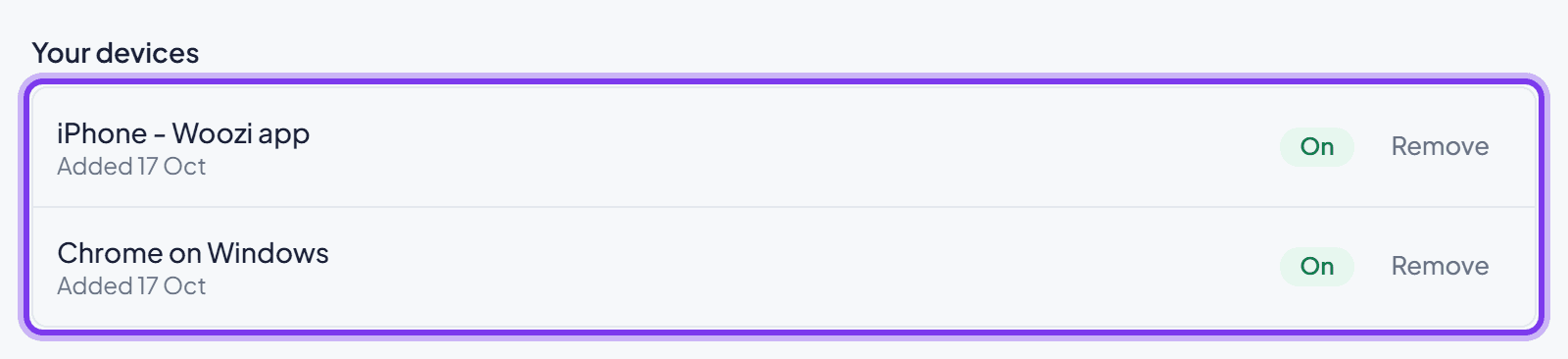
Turn on phone alerts
Get notified about last-minute cancellations and customers waiting for a reply, even when the Woozi tab is closed.
Get notified on your phone when a customer needs you, last-minute cancellations and customers waiting for a reply, even when the Woozi tab is closed.
Turn on alerts
- 1
Open the alerts banner
On your Dashboard, find the banner that says Get alerts on your phone when a customer needs you and click Turn on alerts.
- 2
Allow notifications
Your browser asks for permission. Allow it. On iPhone, there is one extra step first, see below.

On an iPhone
iPhone only sends alerts from Woozi if it is added to your home screen first. It takes about 30 seconds.
- 1
Open the Share button
In Safari, tap the Share button at the bottom of the screen.
- 2
Add to Home Screen
Scroll down, tap Add to Home Screen, then Add.
- 3
Open Woozi from your home screen
Tap the Woozi icon you just added, then tap Turn on alerts.
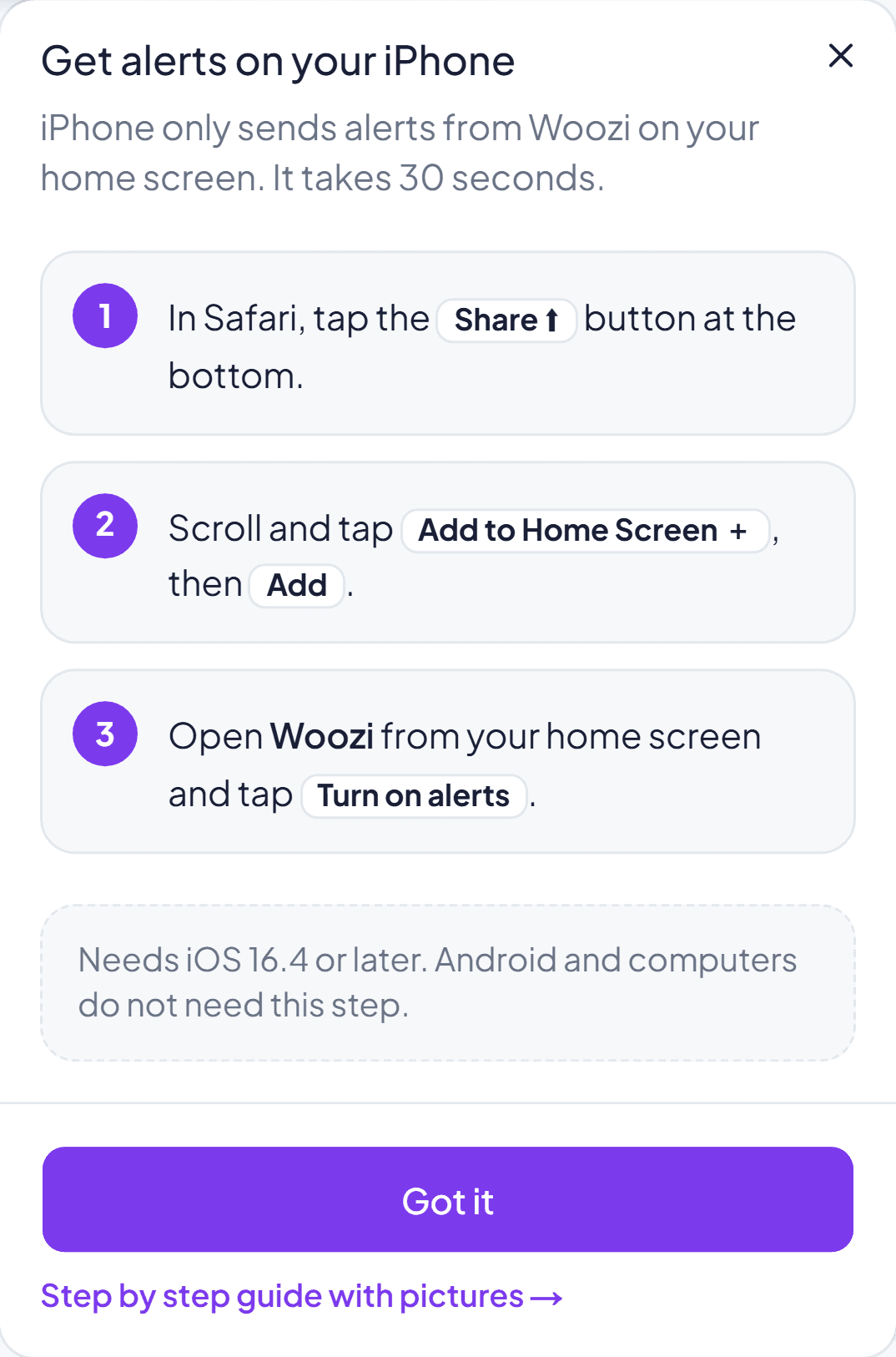
This needs iOS 16.4 or later. Android phones and computers do not need this extra step.
On Android or a computer
Just click Turn on alerts and allow notifications when your browser asks. There is no extra step.
If alerts are blocked
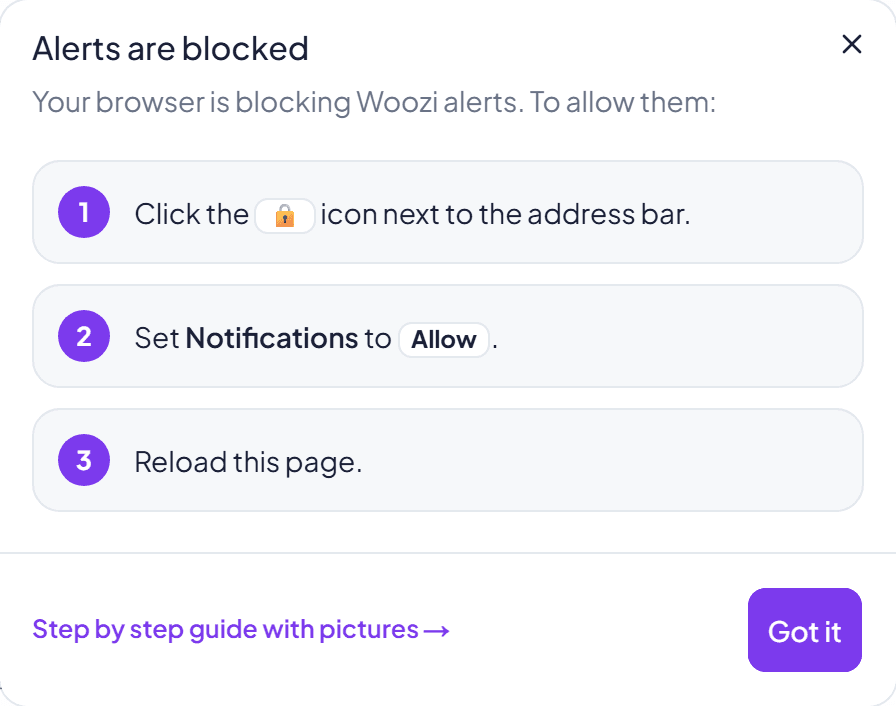
If your browser already blocked notifications, turning the setting back on takes a few taps or clicks. The exact menu names vary a little by device and browser version.
On a computer
- 1
Open the lock icon
Click the lock icon next to the address bar.
- 2
Allow notifications
Set Notifications to Allow.
- 3
Reload the page
Reload Woozi, then try Turn on alerts again.
On Android (Chrome)
- 1
Open site settings
Tap the lock or info icon at the start of the address bar.
- 2
Allow notifications
Tap Permissions, then set Notifications to Allow.
- 3
Reload the page
Reload Woozi, then try Turn on alerts again.
On an iPhone
Alerts only work from the home-screen app (see above), so this is controlled from the phone's own Settings, not Safari:
- 1
Open iPhone Settings
Open the Settings app, then scroll down and find Woozi in the app list.
- 2
Allow notifications
Tap Notifications, then turn on Allow Notifications.
Common questions
Who gets these alerts?
Owners and admins, since they are the ones urgent alerts are meant for.
Can I turn on alerts on more than one phone?
Yes. Repeat these steps on each device. Manage which devices are signed up under Settings, Notifications.
Do these alerts work for Instagram and Messenger too?
Yes. Alerts aren't tied to a specific channel: if one of these events happens in a connected Instagram or Messenger conversation, you get the same alert.