
Connect your WhatsApp business number
Link your WhatsApp Business number so Woozi can read and answer your customers' WhatsApp messages.
Once your number is connected, Woozi can read and answer your customers' WhatsApp messages, and book appointments for them.
Before you start
- A Facebook account you can log in to.
- A Meta business portfolio for your business, already created. Don't have one yet? See Create a Meta business portfolio first, it only takes a few minutes.
- The phone number you want customers to message, with the phone nearby to receive a verification code.
Already using this number in the WhatsApp Business app? Contact us before you connect it, see the section below.
Connect in 4 steps
- 1
Open WhatsApp settings
In Woozi, go to Settings, open the WhatsApp tab, and click Connect WhatsApp.
- 2
Choose your business portfolio
A Meta window opens. Log in with Facebook, then choose the business portfolio for your business.
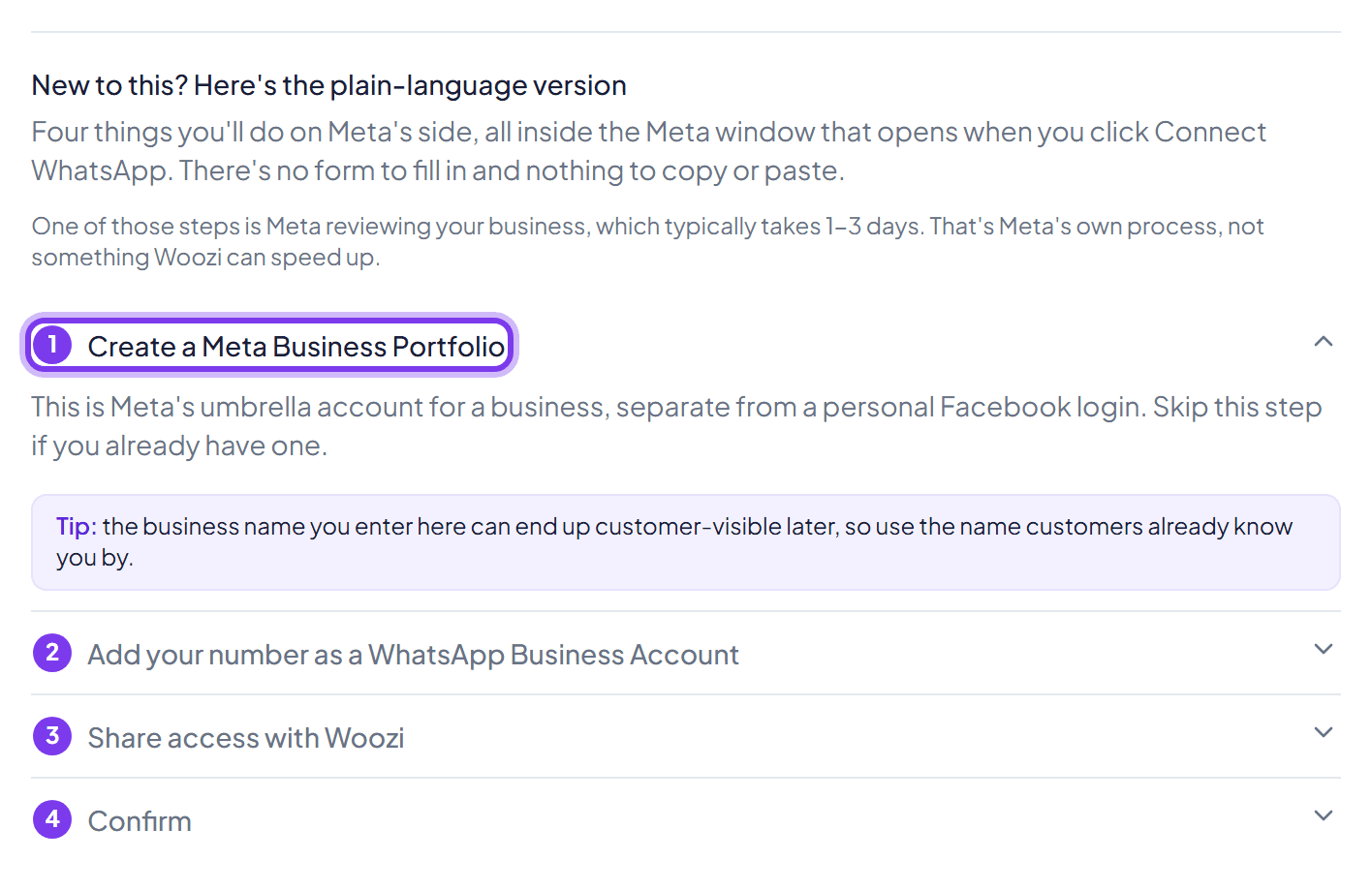
New to Meta? The guide under Connect WhatsApp explains each step - 3
Add your phone number
Enter your business number and the name customers will see. Meta sends a code by SMS or call; type it in.
- 4
Back in Woozi
The window closes and your number shows as connected. Send a message to it from another phone to test.
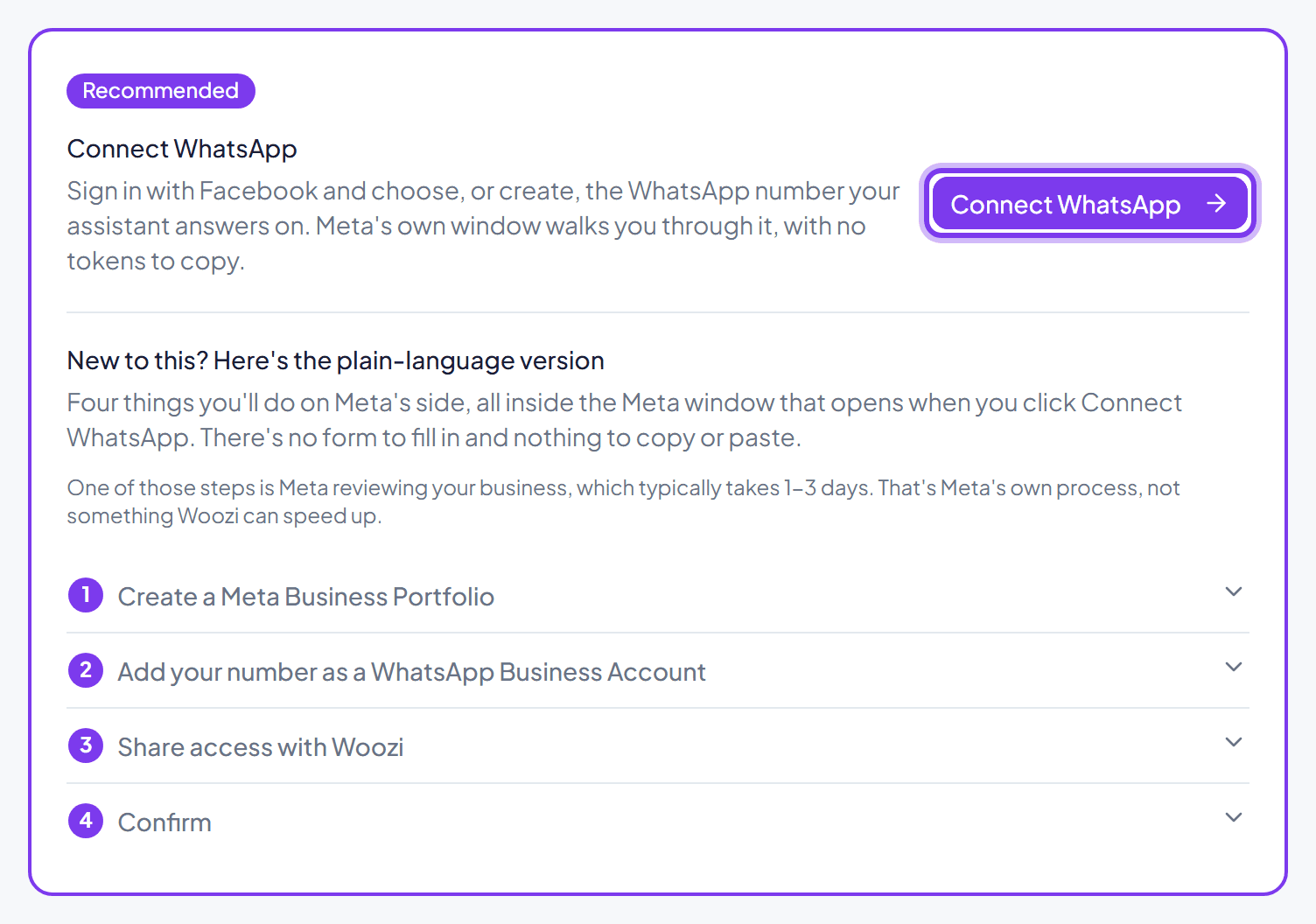
Your number is live as soon as you confirm the verification code, there's no extra waiting period before it can receive messages.
Already using the WhatsApp Business app
Using this number in the WhatsApp Business app today? Contact us before you connect it and we'll walk you through it.
If Connect WhatsApp doesn't work for your account
Two other ways to connect, both still inside Settings, WhatsApp:
- Connect with Facebook: a simpler Facebook login that also connects WhatsApp automatically if it is part of the same Meta account. Quicker, but it cannot create a brand-new business portfolio or number for you.
- Advanced setup: open the Advanced setup section to enter your Phone Number ID, WhatsApp Business Account ID, and Access Token by hand. This is for migrations, or if the options above don't work for your account.
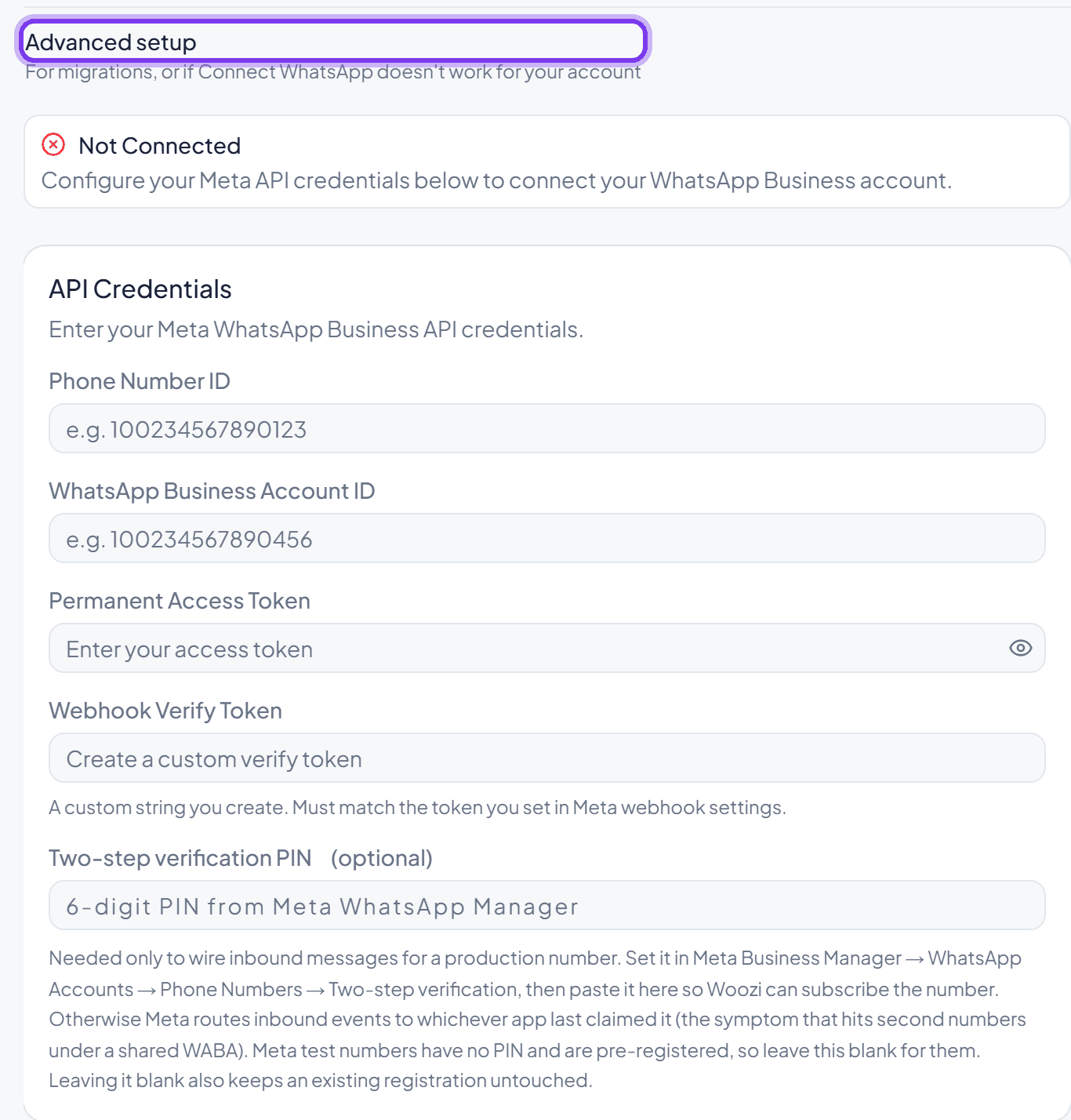
WhatsApp shows disconnected
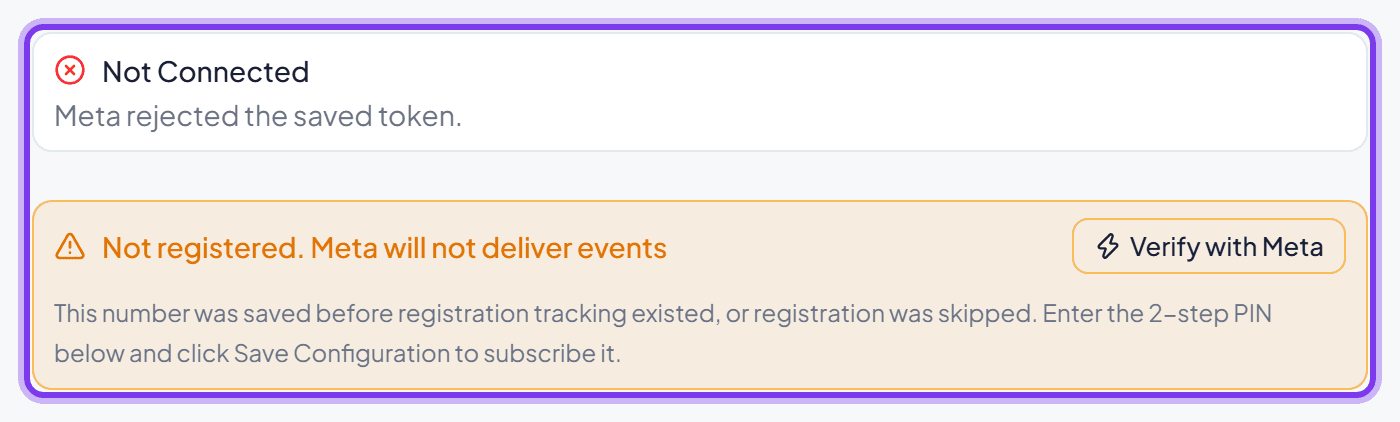
Settings, WhatsApp shows two separate status lines:
- Credentials: whether Woozi still holds a working connection to your number.
- Registration: whether Meta will actually deliver messages to Woozi.
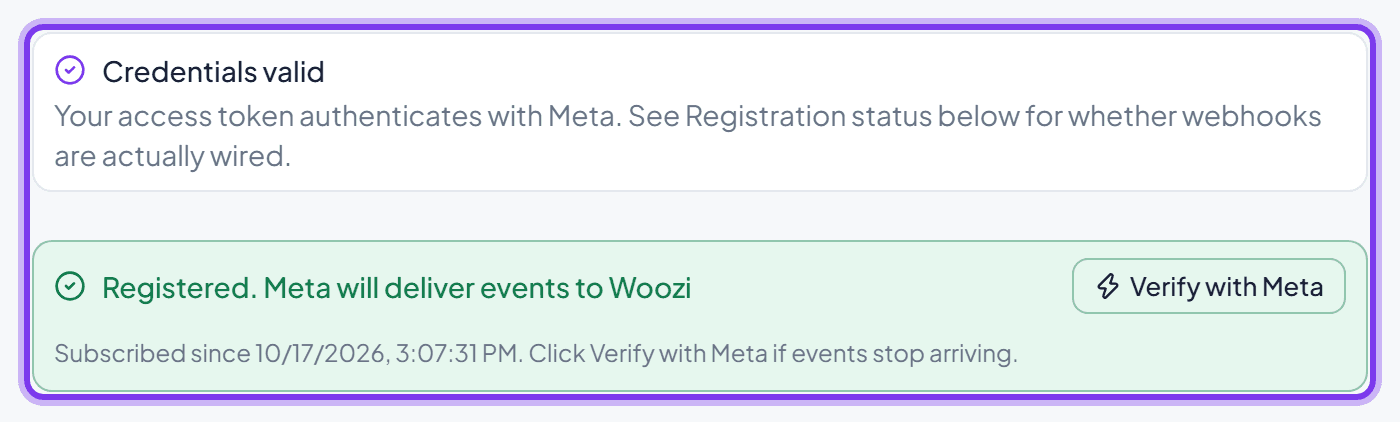
If either shows a problem, reconnect from scratch: open Settings, WhatsApp, remove the current connection, then run Connect WhatsApp again.
Common questions
Can I keep using the WhatsApp Business app?
Contact us before you connect it and we'll walk you through it.
Once I'm connected, what does my number actually send?
See what your customers receive: booking confirmations, reminders, cancellations, and everything else Woozi can send automatically.
The Facebook window closed and nothing happened
This usually means the setup was closed before it finished, or a pop-up blocker stepped in. Allow pop-ups for Woozi and try Connect WhatsApp again.
Can I connect more than one WhatsApp number?
A Woozi account answers on one WhatsApp number at a time. If more than one is available on your Meta account, Woozi asks you to choose which one to connect.