
Services, hours and availability
Set your hours, services and booking rules so Woozi AI can offer and book real appointments, never a guess.
Set your hours, services and booking rules so Woozi AI can check your real calendar and offer real times, never an invented one.
Before you start
Go to Bookings in Woozi. If you have more than one location, set each one up separately, hours and rules don't copy automatically between locations.
Set your hours
- 1
Open the Rules & locations tab
Go to Bookings, Rules & locations.
- 2
Set each day
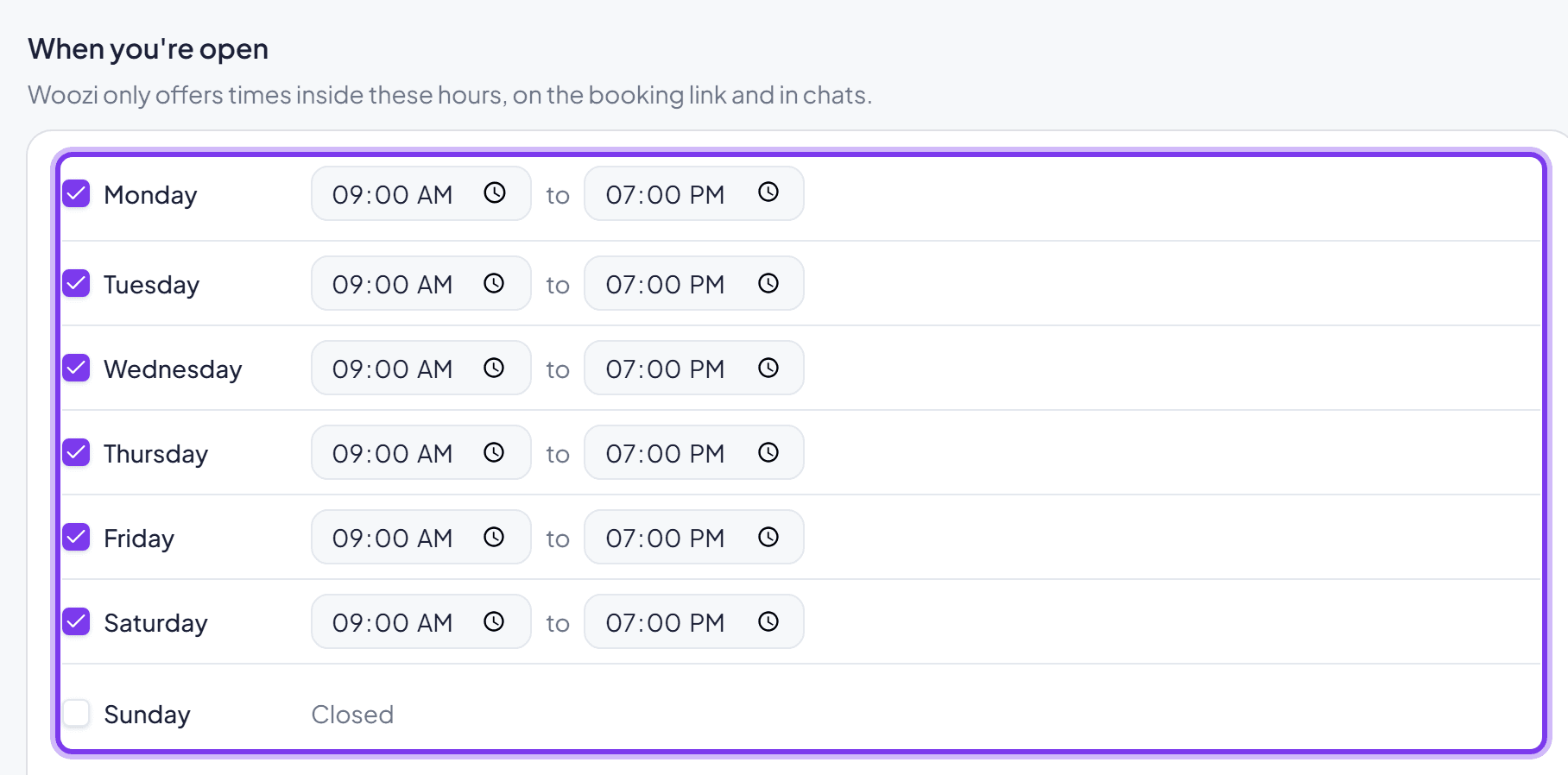
Tick the days you're open, then set opening and closing times. Times move in 5-minute steps.
Add your services
- 1
Open the Services list
Still on Bookings, Services, click Add service.
- 2
Fill in the details
Name, duration in minutes, and a price: fixed, starting from, free, or not shown.
- 3
Choose whether it's bookable online
Turn the Online switch on if customers should be able to book this service through WhatsApp or your booking link.
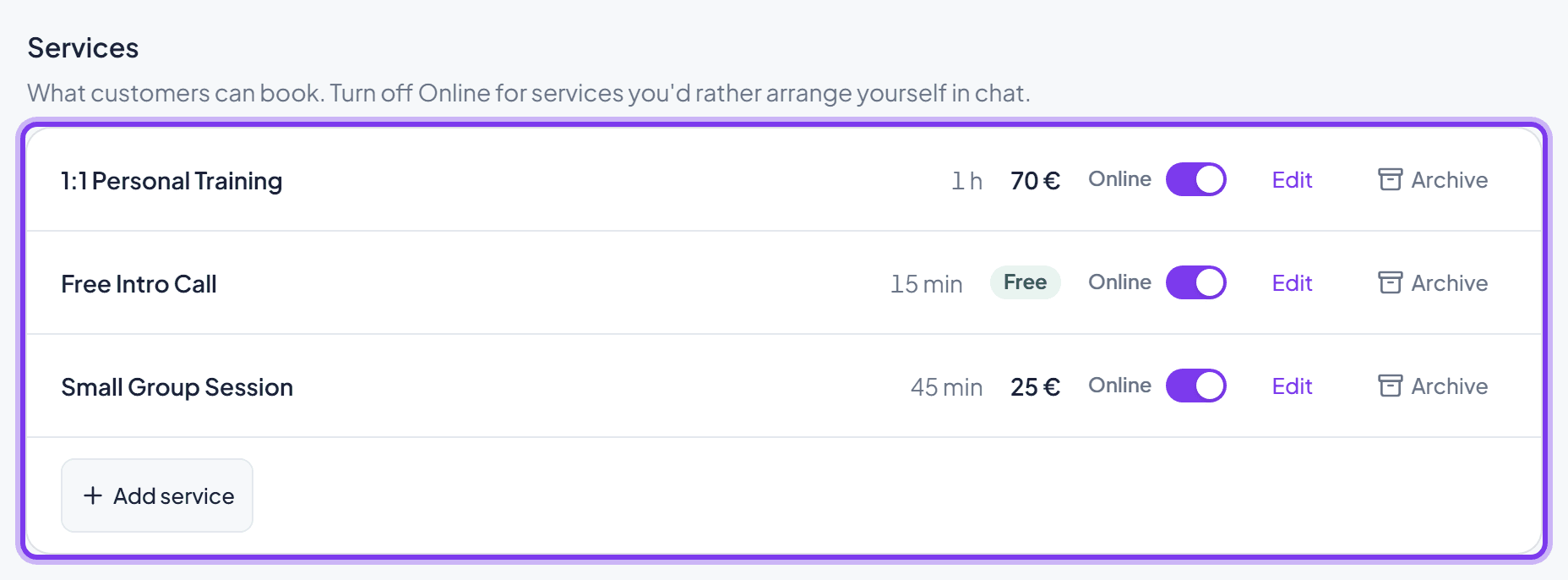
A service with existing bookings can't be deleted outright, archive it instead. Archiving is reversible, deleting is permanent.
Set your booking rules
Go to Bookings, Rules & locations to set:
- Customers at the same time: how many bookings Woozi AI can confirm for the same slot. This is a hard promise, Woozi confirms up to this number without checking with you first.
- Earliest booking: how soon from now a customer can book, right away, in 1 or 2 hours, next day, or a custom value.
- Book up to: how far ahead customers can book, 14, 30, or 60 days, or no limit.
- Break after each booking: a gap Woozi leaves free after every appointment, none, 5, 10, 15 minutes, or custom.
- Change or cancel up to: how close to the appointment a customer can still change or cancel it themselves through WhatsApp. Pick a preset (1, 2, 6, 12, 24, or 48 hours) or a custom number of whole hours, up to one week. The default is 2 hours.

This cutoff only applies to customers. Your team can always change or cancel any booking directly from Bookings, with no cutoff.
Booking in a chat
A customer doesn't fill out a form, they just talk. Woozi AI checks your real hours, capacity and rules, then offers real times. If nothing's free, it offers to add them to the waitlist instead.
Before confirming, the AI always makes sure the customer has clearly agreed to the specific time. If a slot fills up between offering it and confirming it, the customer is told honestly and offered another time in the same conversation.
Cancelling and rescheduling
Customers can cancel or reschedule the same way, by talking. If someone has more than one upcoming booking, the AI shows them their bookings and asks which one first. Before cancelling, it asks whether they'd rather reschedule instead, unless they've made it clear they want to cancel.
Closer to the appointment than your change or cancel cutoff, the AI won't change or cancel the booking itself. It tells the customer it's too late to do it online, gives them your WhatsApp number, and notifies your team right away.
Waitlist
When a slot is full, a customer can join the waitlist for it. The moment it frees up, the next person on the waitlist is offered it automatically over WhatsApp, first come first served. If they don't respond in time, the offer moves to the next person automatically.
Reminders
Every booking gets a reminder 24 hours before, and again 4 hours before. WhatsApp is tried first; if that fails, an email is sent instead. Cancelled and no-show bookings are never reminded.
Your booking link
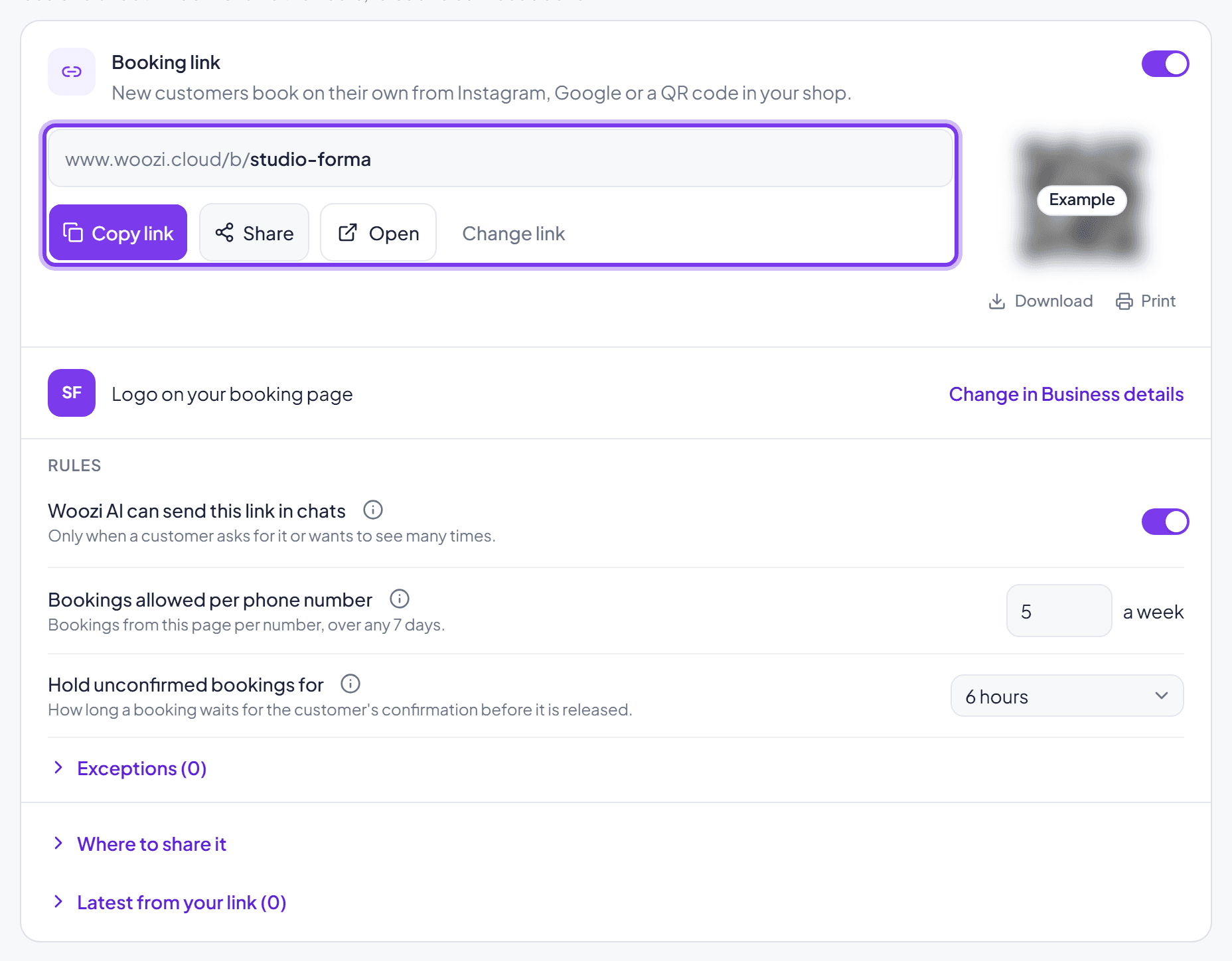
Share a direct link (and QR code) customers can use to book online without messaging first. Set it up under Bookings, Online booking:
- Bookings allowed per phone number: a limit per customer over a rolling 7-day window, 1 to 100, default 5.
- Hold unconfirmed bookings for: 2, 6, or 24 hours. If WhatsApp isn't connected yet, nothing can be confirmed, so this setting does nothing until it is.
- Your link's address uses 3 to 40 lowercase letters, numbers and single dashes.
Common mistakes worth avoiding
- Setting "Customers at the same time" above what you can actually deliver. It's a hard promise, not a suggestion.
- No break after each booking for a service that often runs over. A bookable slot doesn't guarantee the previous appointment finished on time.
- Forgetting that hours are per location. A second location needs its own hours set separately.
- Turning on booking before hours and services are set up. Nothing stops you, but customers will find no times to book.
Common questions
Can I set different rules for different locations?
Yes, each location has its own hours, services and rules. An "Apply to all locations" button copies notice, booking window, break and cutoff, but not capacity, which stays per location.
Can I add a recurring booking myself?
Yes, when adding a booking manually you can set it to repeat weekly or every two weeks. Each date is checked against real availability individually.
What happens if a customer is a no-show?
You can mark a past appointment as a no-show from your bookings list, for your own records. It doesn't charge or contact the customer.